
How to Add Your Shop Name to Photos — No Typing Required
There are three ways to add your shop name to photos: add text afterwards in an editing app, attach location data (a geotag), or stamp it into the image at the moment of capture.
Only the third survives being posted to social media. Here’s why, and where each one fits.
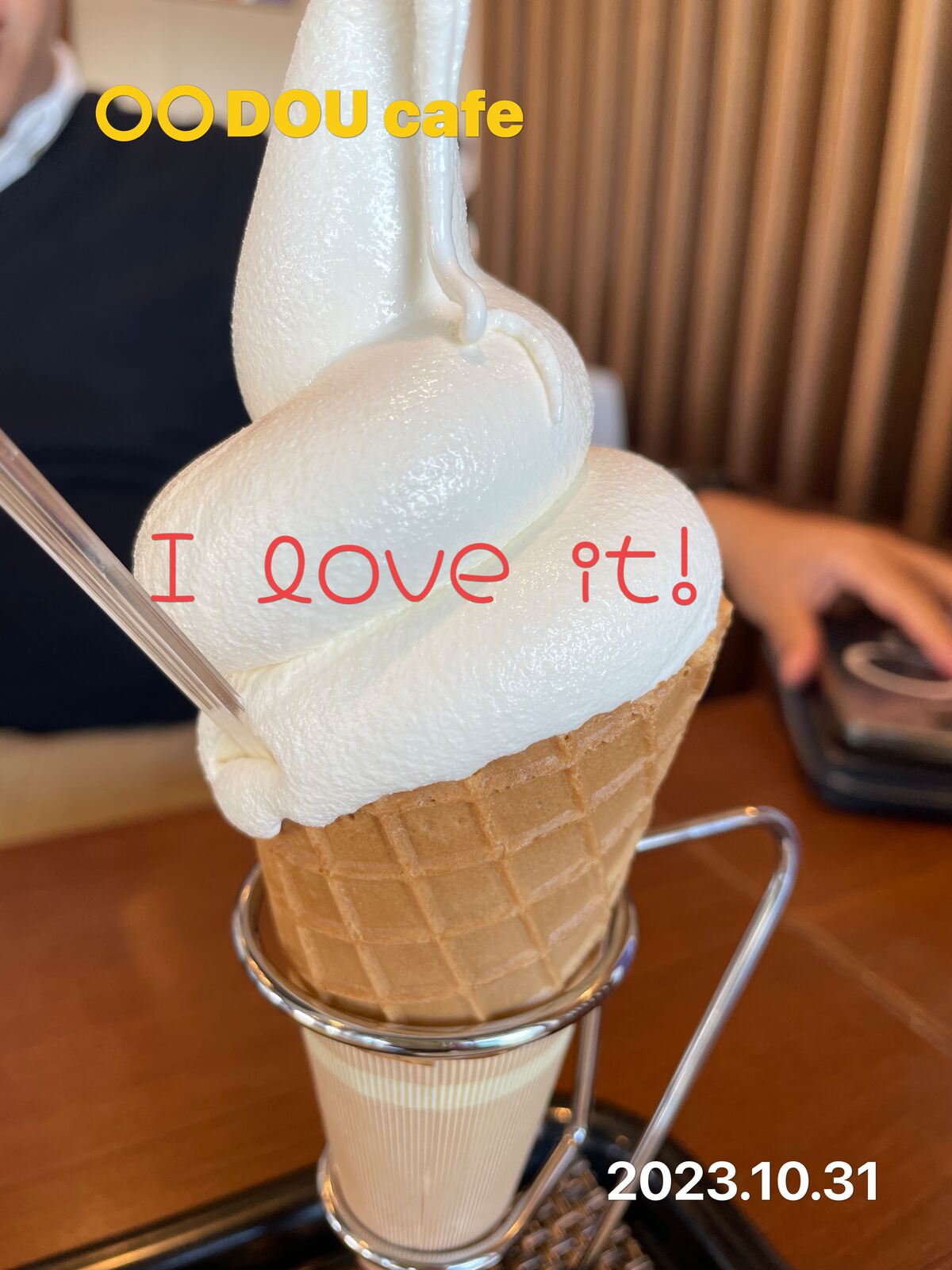
The photo travels; the caption doesn’t
Your post carries your name and handle. But the photo can be screenshotted and pulled away from the post — forwarded in a messaging app, reposted to an aggregator account.
When that happens, if the name isn’t in the photo itself, there’s no way to tell which shop it came from.
This kind of off-platform sharing is known as dark social, and it can’t be traced from the posting side. If the name is part of the image, the attribution travels with it.
Method 1: Add text in an editing app
Canva, Phonto, or the markup tools in the iOS Photos app let you add text after shooting.
Good for
- When the design matters
- One-off announcements, where the volume is small
Not good for
- Daily posting. Every photo needs its text positioned and sized by hand
Method 2: Attach location data (geotags)
Your phone’s camera writes GPS coordinates into the photo’s metadata (EXIF). Once enabled, it costs you nothing.
But most platforms strip it on upload. Major social networks remove EXIF location data for privacy reasons. Download a posted photo and the location is no longer there.
There’s a second issue: EXIF is invisible. To find the location, a viewer has to deliberately open the file’s details.
Good for
- Keeping a record of where you shot, for yourself
Not good for
- Anything you post publicly
Method 3: Stamp it into the image
The shop or place name is drawn into the pixels. The text becomes part of the photograph.
Upsides
- Survives screenshots, re-saves, and forwarding
- Survives platform compression
- Visible at a glance — no need to inspect anything
Downside
- You can’t remove the text later
For attribution, “can’t be removed” is the point. Keep the original separately and you still have a clean version.
Making it automatic
The friction in Method 3 is doing it for every photo. That goes away if the text is added as you shoot:
- The camera reads your GPS position at capture
- It resolves that position into a place name
- It draws the name and date into the image as it saves
The place name and date go in without typing. After the shutter you check the result on the edit screen, then pick which version to save on the preview screen. (If the photo has no location data, you pick or type the place name yourself. Same when nothing nearby is found — and there, leaving it blank puts the coordinates in instead of a place name.)
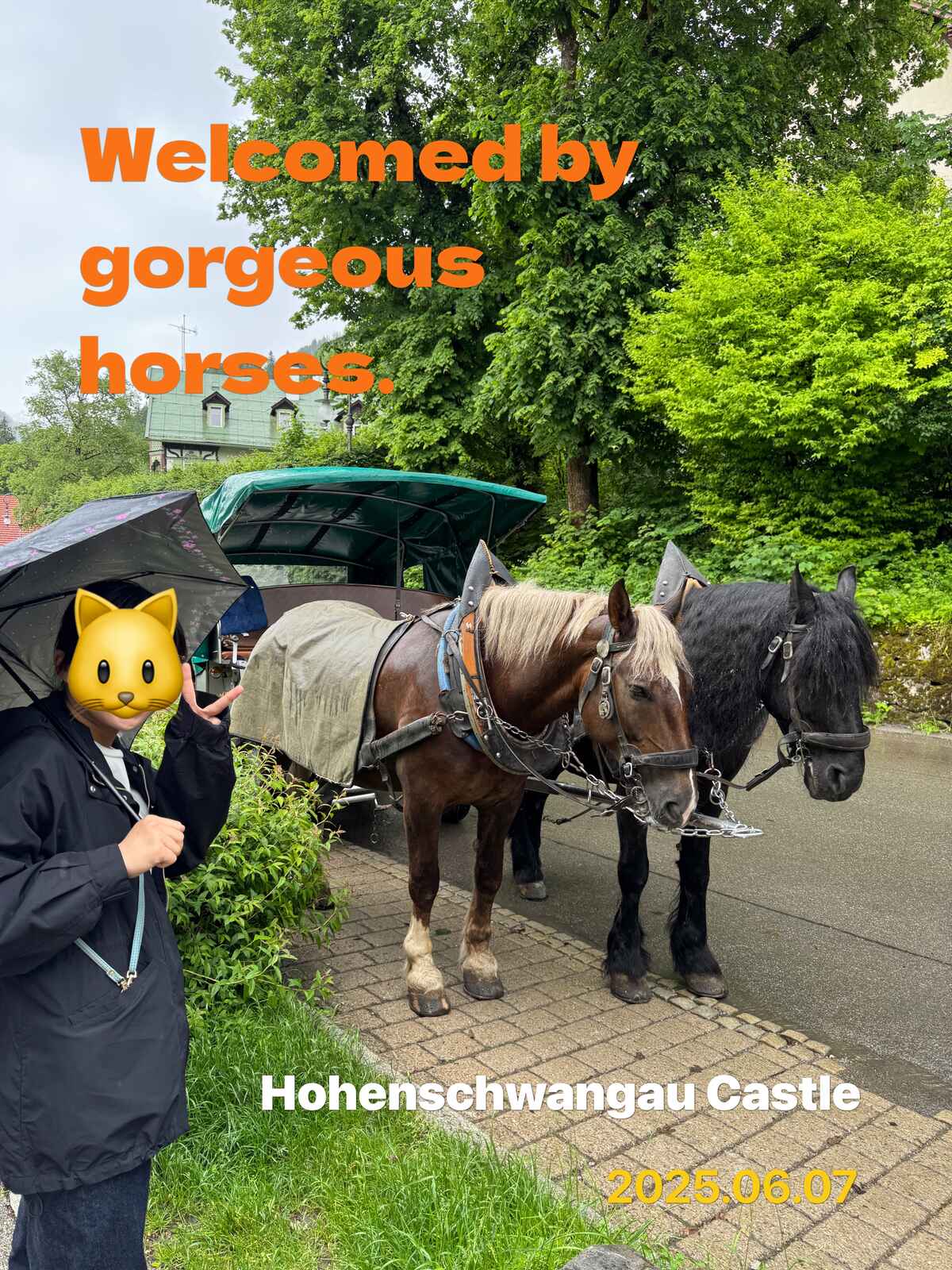
What to include
Shop name Wherever the photo ends up, the shop is identifiable. The most important one.
City or district Useful when several shops share a name, or when you’re posting for people unfamiliar with the area.
Capture date For new items and seasonal announcements, it tells people how current the photo is — and stops old photos circulating as new.
Logo Recognised faster than text, and gives your posts visual consistency. It takes up more of the frame, so keep it small enough to stay out of the subject’s way.
Common concerns
The text covers the food
Keep it in a corner, small. Semi-transparent text is an option, but it can become hard to read after a screenshot or compression. Small and clearly legible is the safer choice.
Won’t it look like an advert?
Your name alone is a signature — the same as a photographer signing their work. Without a call to action, it doesn’t read as pushy.
I want to keep the original too
Pick a tool that saves the unstamped version separately. Keeping a clean copy leaves your options open.
Can I stamp hashtags into the photo?
Better not to. A hashtag drawn into an image isn’t tappable. Only hashtags in your post text work as tags, so copying them at share time is the practical approach.
If you want a link in the image, a QR code works — phone cameras read it.
How KIOKUN works
KIOKUN is an iOS app that stamps the place name and date into your photo as you shoot.
Shooting
- It uses the GPS position recorded at the shutter to work out the place name, then draws it into the image when you save
- Four display formats: Spot (your shop) / City / Spot + City / City + Coords
- A clean copy without text is also saved to your camera roll (on by default; you can turn it off)
- You can also edit photos from your camera roll. If the photo still has location data, it’s used; if not, you type the place name in
Editing
- Drag to reposition the text; resize with the slider or a two-finger pinch
- Three fonts on the free tier, with more available on Pro
Pro features
- Shop logo, copyright line, watermark, and QR codes
- Set these at kiokun.app/console — open it in a browser and enter the six-digit code shown in the app — and they apply to devices signed in with the same account. If your staff use separate accounts, each account needs its own setup
Sharing
- At share time, hashtags built from the place name are copied to your clipboard. They are never stamped into the photo
- Pro adds a fixed set of hashtags and a URL
How your data is handled
- Your photos are never sent to our servers. All image processing happens on your device
- That said, resolving a place name does send the capture coordinates through our servers (which relay them to Google’s place search service) and Apple’s mapping and geocoding services. The result is stored on our servers for a limited period, along with a coarsened version of the coordinates
- For details on what stays on your device, see our privacy policy
For business use, see our team and business page.
FAQ
- Can I stamp photos I've already taken?
- Yes. Pick a photo from your camera roll and add the place name and date afterwards. If the photo still has location data, it’s used; if not, you type the place name in.
- Is there an Android version?
- Currently we offer iOS only (iOS 16.0 or later).
- Is it free?
- You can save up to 10 photos free. Beyond that, Pro is required. Shop logo, copyright line, watermark, and QR codes are Pro features.
- Can several staff members share the same settings?
- Settings made at kiokun.app/console (enter the six-digit code shown in the app) apply to devices signed in with the same account. If each staff member uses a separate account, each will need to set it up individually.
- Will the text survive posting to social media?
- Yes. The text is drawn into the pixels, so it survives platform compression and screenshots. Unlike EXIF location data, it can’t be stripped.
- Are my photos ever uploaded to a server?
- The photo itself is never sent — all image processing happens on your device. That said, resolving the place name does send the capture coordinates through our servers (which relay them to Google’s place search service) and Apple’s mapping and geocoding services. See our privacy policy for details.
KIOKUN — Free on the App Store (free for your first 10 photos) Endots (Koryu Kawatani) / Made in Japan